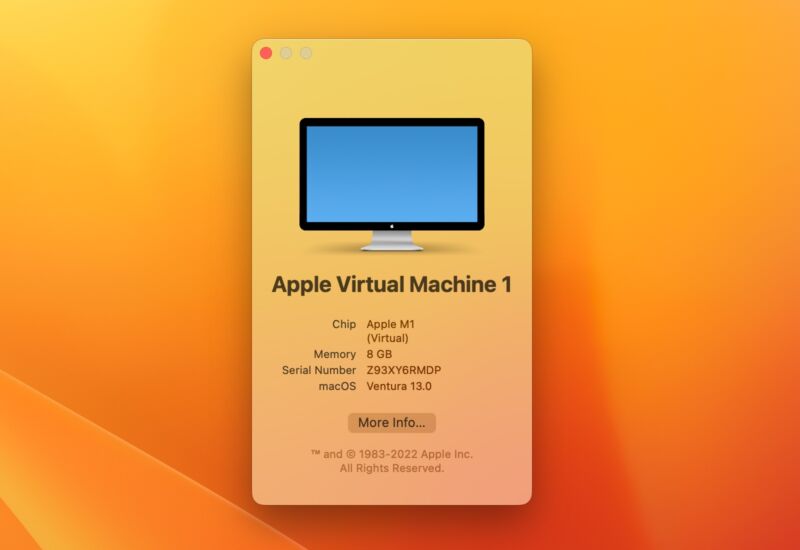
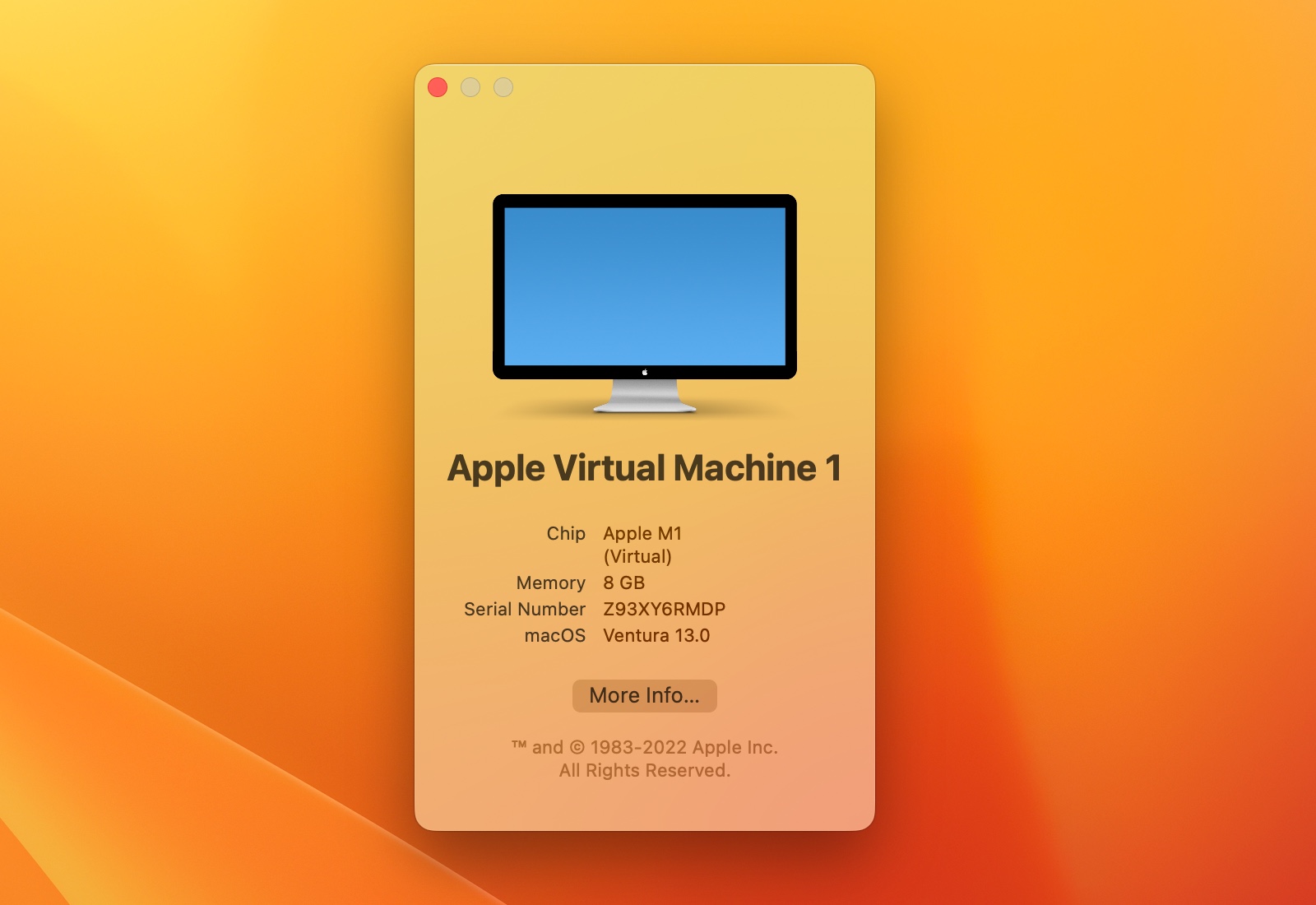
Enlarge/ Virtualizing macOS versions like the Ventura beta is a good way to experiment without blowing away your main OS install. (credit: Andrew Cunningham)
One of the coolest power-user Mac features of the Apple Silicon era is Apple's Virtualization framework. Normally the purview of paid software like Parallels Desktop or VMWare Fusion, virtualization lets you run multiple operating systems on one Mac at the same time, which is useful for anyone who wants to run Linux on top of macOS, test an app they're developing in different versions of macOS, or take a look at the latest macOS Ventura beta without risking their main install.
Apple’s documentation and sample projects provide everything you need to get a simple VM up and running with no additional software required. Still, some independent developers have built simple, free apps on top of the Virtualization framework that provides a GUI for customizing settings and juggling multiple guest OSes.
Getting ready to virtualize
My favorite for running macOS on top of macOS is VirtualBuddy, which streamlines the process of downloading the files you need to get a Monterey or Ventura virtual machine up and running. This is the app we’ll be using to set up our sample VM in this guide.
Keep it Clean. Please avoid obscene, vulgar, lewd,
racist or sexually-oriented language. PLEASE TURN OFF YOUR CAPS LOCK. Don't Threaten. Threats of harming another
person will not be tolerated. Be Truthful. Don't knowingly lie about anyone
or anything. Be Nice. No racism, sexism or any sort of -ism
that is degrading to another person. Be Proactive. Use the 'Report' link on
each comment to let us know of abusive posts. Share with Us. We'd love to hear eyewitness
accounts, the history behind an article.


(0) comments
Welcome to the discussion.
Log In
Keep it Clean. Please avoid obscene, vulgar, lewd, racist or sexually-oriented language.
PLEASE TURN OFF YOUR CAPS LOCK.
Don't Threaten. Threats of harming another person will not be tolerated.
Be Truthful. Don't knowingly lie about anyone or anything.
Be Nice. No racism, sexism or any sort of -ism that is degrading to another person.
Be Proactive. Use the 'Report' link on each comment to let us know of abusive posts.
Share with Us. We'd love to hear eyewitness accounts, the history behind an article.